IBO Player setup guide for Australian TVHammer subscribers

IBO Player is the only application TVHammer supports, and that is a deliberate decision. One app means one set of instructions, one tested behaviour and one place to look when something needs adjusting. This guide takes you from the activation email to a working channel list, with the device steps written out in full.

Before you start

What you need in front of you

📧

Your activation email

Sent within about fifteen minutes of ordering. It carries the portal URL, your username and your password — the three details the playlist portal will ask for.

🌐

A capable connection

25Mbps is enough for HD. For consistent 4K aim for 50Mbps or more, and use an Ethernet cable to the router where the room layout permits it.

📺

One streaming device

Each subscription drives a single device. Decide now whether the line lives on the lounge-room television, the Android box or the tablet.

The short version

Five steps from order to first channel

The whole process takes about fifteen minutes on a device you have used before. The detailed per-platform instructions follow underneath.

Order your subscription

Choose a term on the pricing page and complete the order form. Your activation email arrives shortly afterwards containing the portal address and login pair that identify your line.

Install IBO Player

Grab the build that matches your hardware. Android and Windows install from a downloaded file; LG and Samsung televisions carry IBO Player in their own content stores; streaming sticks need a sideloading helper first.

Read your MAC address and Device Key

Open the app and select the person icon on the dashboard. The Device Info panel at the top left lists a MAC address and a Device Key. Write both down — the activation portal will not let you in without them.

Activate the playlist remotely

IBO Player uses remote activation rather than typing credentials into the television. Visit the playlist management area on the IBO Player website, sign in with the MAC address and Device Key, add your TVHammer details and save.

Refresh and tune

Close the app fully and reopen it, then run a data refresh from the dashboard. Your categories, guide and on-demand library populate. Two small layout changes described below make the channel list far easier to live with.
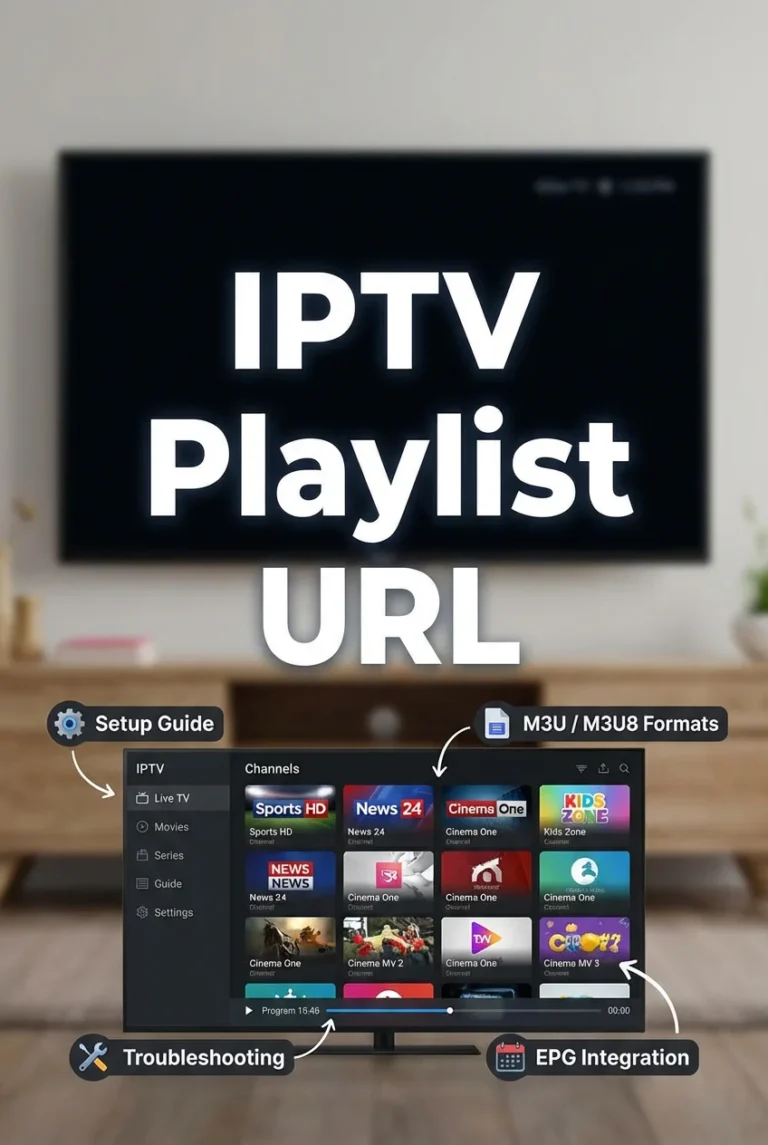
Illustration of a playlist URL being configured in an IPTV application on a television
Why remote activation

Nothing is typed with a remote control

Most IPTV apps make you enter a long server address, a username and a password using an on-screen keyboard and a directional pad. IBO Player avoids that entirely: you enter the details once on a phone or laptop through the management portal, and the app collects them from the cloud the next time it starts.

It is faster, it removes typing errors, and it means changing your line later never involves reconfiguring the television. The one thing to remember is that the app must have internet access when it first boots after you save the playlist, otherwise it has nothing to collect.

If the lineup does not appear: fully close the application (not just back out of it), reopen it, and use the data refresh button on the dashboard. That single sequence resolves the overwhelming majority of first-activation questions we receive.
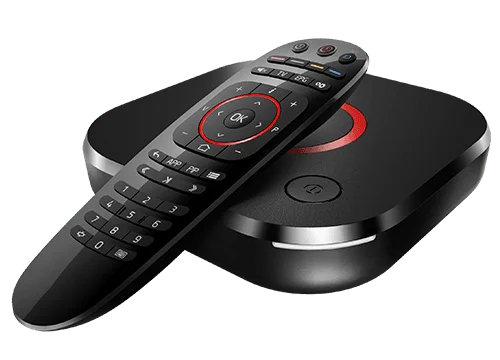
Set-top box and remote control of the kind used to run IBO Player with a TVHammer subscription

Installing IBO Player device by device

Android phones, tablets and TV boxes

Android is the simplest route because the browser and the installer sit on the same device.

  1. Open the browser and download the IBO Player installation file from the developer's official site.
  2. Android will warn that the file came from outside the store. This is expected for a sideloaded app — choose to download anyway.
  3. Open the downloaded file and select Install.
  4. Launch the app. An introductory screen explains the activation model; acknowledge it with OK.
  5. The dashboard loads and the app is ready to be paired with your TVHammer line.

Windows 10 and 11

The desktop build is 64-bit and requires Windows 10 or newer.

  1. Download the Windows installer from the developer's download page.
  2. Windows SmartScreen will interrupt because the file did not come from the Microsoft Store. Select More Info, then Run Anyway.
  3. Work through the installer: Next, optionally tick the desktop shortcut, Next again, then Install.
  4. Click Finish to launch IBO Player.

Streaming sticks

Sticks need a sideloading helper because IBO Player is not carried in their own store.

  1. From the home screen, open search and install the Downloader utility.
  2. Open device settings and enable installation from unknown sources for Downloader. If the developer menu is hidden, open the About panel and press select on the device name seven times to reveal it.
  3. Return to Downloader and enter the official IBO Player code 511693, then choose Go.
  4. Let the download finish without interrupting it, then work through the installation prompts.
  5. Open the app and acknowledge the first-run message.

macOS

  1. Download the macOS build from the developer's download section.
  2. Open the downloaded file and drag the icon into your Applications folder.
  3. Launch it from Launchpad. macOS will block the first attempt because the app came from outside the App Store.
  4. Open System Settings, go to Privacy & Security, scroll to the security section and choose Open Anyway. Confirm the prompt.
  5. The permission is permanent — subsequent launches open directly.

LG and Samsung smart televisions

Non-Android televisions are where IBO Player genuinely earns its place, because it is one of very few players published for these closed operating systems.

  1. Open the television's own content store.
  2. Use the search icon and type "IBO Player".
  3. Several similarly named apps may appear. Select the one named exactly IBO Player and ignore the variants.
  4. Choose Install, then Launch.
  5. Acknowledge the welcome message and move on to playlist activation.

Adding your TVHammer playlist

Activation happens on the IBO Player website rather than on the device itself.

  1. Open IBO Player on your streaming device and select the person icon on the dashboard. Note the MAC address and Device Key shown under Device Info.
  2. On a phone or laptop, open the IBO Player site and choose Manage Playlist from the menu.
  3. Enter the MAC address and Device Key to sign in to the playlist management area.
  4. Choose Add XC Playlist if TVHammer sent you a host, username and password — this is the usual case. Enter the host address exactly as written, then your username and password.
  5. Choose Add Playlist instead if you were issued a single long streaming line. Give it a name, paste the URL, and leave the XMLTV EPG field empty so the guide is taken from the playlist itself.
  6. Optionally tick the protection box to set a PIN on the playlist, which is worth doing in a household with children.
  7. Save. Reopen the app on your device and the lineup will populate.

Two settings worth changing immediately

Fix the cramped Live TV layout

The default channel screen crowds channel names underneath the preview window and squeezes the programme guide. It is a two-click fix.

  1. From the dashboard, select the screen icon beside the Wi-Fi symbol to open Live Screen Style.
  2. Switch from the default style to the alternative layout and save.
  3. Channel names now have room and the guide sits correctly. Press left on the remote at any time to bring the category column back into view.

Build a favourites list

With 22,000 channels in the lineup, favourites are not optional — they are how the service becomes usable day to day.

  1. In the channel list, press and hold select on a channel you want to keep.
  2. Choose Add. A heart appears beside the channel name to confirm.
  3. The favourites category sits at the top of the category column.

The search function in the lower-left corner of the Live TV screen searches every category at once, but it matches on specific terms — so "cricket" will find far more than a partial misspelling will.

Matching stream quality to your Australian connection

Australian access technologies behave differently, and picking the right quality profile prevents most evening buffering complaints before they start.

Recommended stream settings by NBN connection type
Connection Typical evening speed Recommended quality Notes
FTTP100Mbps+4K UHDWired or wireless both fine
HFC50–100Mbps4K UHDWired recommended during peak hours
FTTC50–90Mbps4K or FHDDrop to FHD if evening dips appear
FTTN25–60MbpsFull HDDistance from the node matters most
Fixed wireless20–50MbpsFull HD or HDRaise the buffer setting one step
Mobile broadbandVariesHDWatch your data allowance

If something is not right

  • No channels after activation. Force-close the app, reopen it and run a data refresh from the dashboard.
  • Guide times look wrong. Confirm the device's own time zone is set to your state, including daylight saving where it applies.
  • Buffering only in the evening. This is congestion, not the service. Step the resolution down one tier or move to a wired connection.
  • A single channel stalls. Usually an upstream source issue. Report it through the contact page and we will switch you to a backup feed.
  • App will not launch after an update. Clear the cache from the settings section and reopen.

Anything not covered here is likely answered on the FAQ page, and our technicians handle setup questions seven days a week.

Ready to install

Get your credentials and start tonight

Order the intro month for A$12.99 and your activation email — with everything this guide asks for — arrives within about fifteen minutes.